Home
Lab 1 - Host a single-instance website
Step 1. Create a VPC CloudFormation Stack
Step 2. Create a RDS MySQL Database
Step 3. Launch a EC2 Instance
Step 4. Modify Security Groups of RDS and EC2 instance
Step 5. Set up the WordPress Environment
Step 6. Visit your website and configure the WordPress setting
Lab 2 - Build a website with High Availability
Step 1. Create an Application Load Balancer
Step 2. Create an Auto-Scaling Group
Step 3. Create a CloudFront Distribution
Step 4. Modify the WordPress Settings
Step 5. Create a read replica for an Amazon RDS DB instance (Optional)
Reference
Clean Up
Step 1. Delete CloudFront Distribution
Step 2. Delete Load Balancer
Step 3. Delete Auto Scaling Group / Terminate instance
Step 4. Delete RDS Cluster
Step 5. Delete VPC CloudFormation Stack
Step 6. Delete S3 Bucket
GitHub repo
Credits
Privacy
|
Site Terms
| © 2023, Amazon Web Services, Inc. or its affiliates. All rights reserved.
304c146
Edit this page
Step 5. Create a read replica for an Amazon RDS DB instance (Optional)
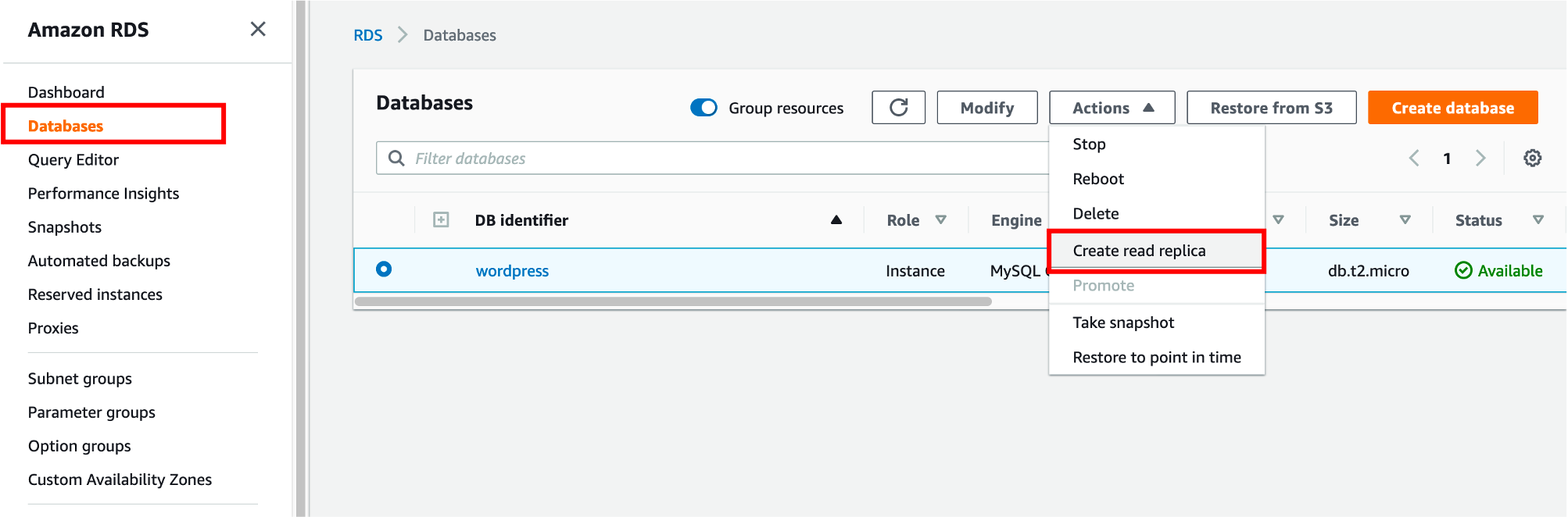
Visit
RDS console
Click
Databases
in left menu,
Click
Actions
->
Create read replica
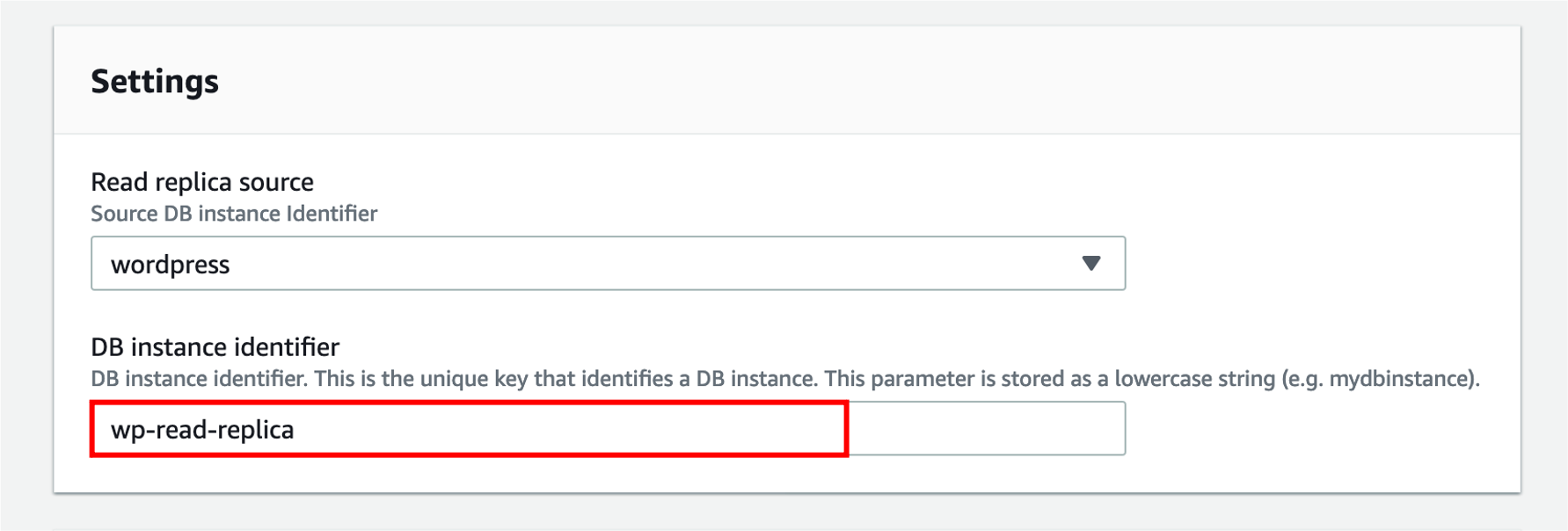
Enter the
wp-read-replica
for
DB instance identifier
Click
Create
Go back to databases page, you will see the read replica instance now. After minutes, it will be created successfully.