Step 2. Create an Auto-Scaling Group
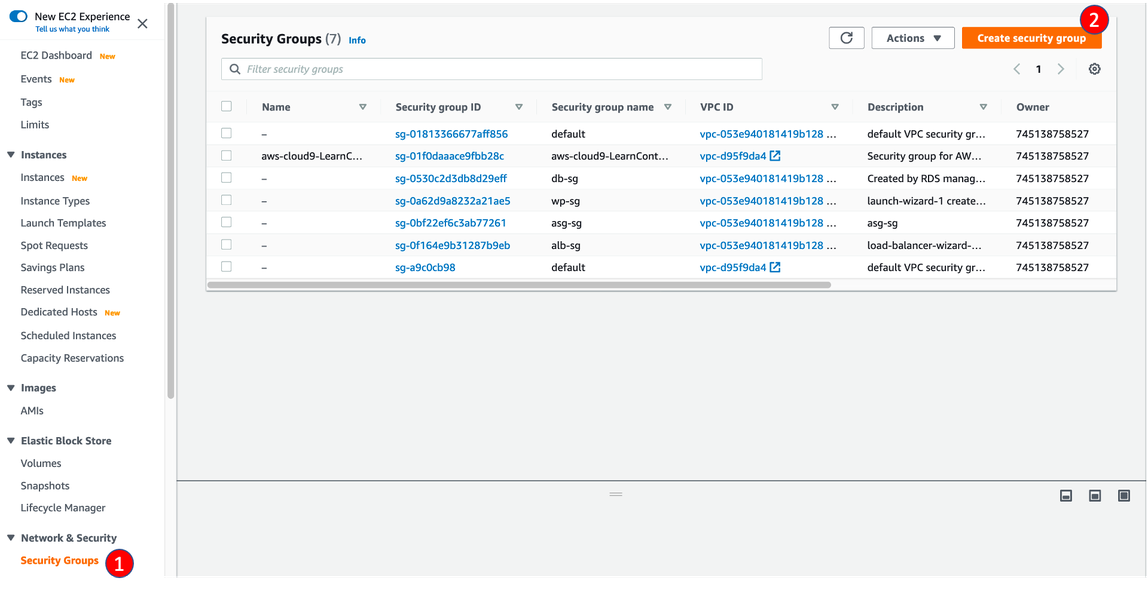
- Visit EC2/Network & Security/Security Groups
Click Create security group
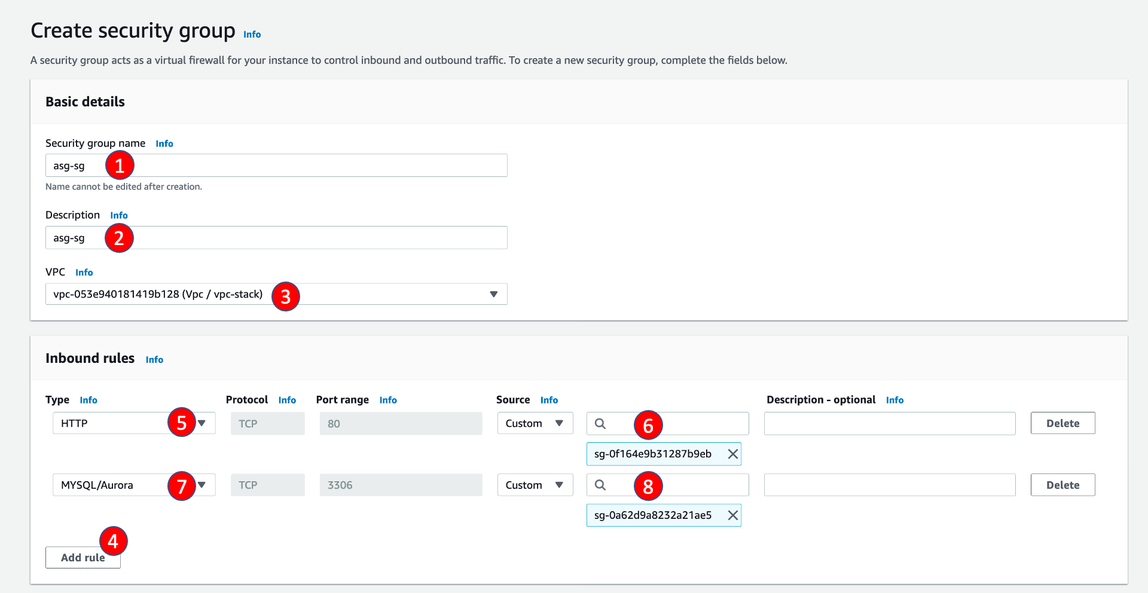
- For Security group name, enter
asg-sg
- For Description, enter
asg-sg
- In Inbound rules section
- Click Add rule
- For Type, select HTTP
- For Source, select Custom and find alb-sg
- Click Add rule again
- For Type, select MYSQL/AURORA
- For Source, select Custom and find db-sg
- Click Create security group
- Visit EC2/Network & Security/Security Groups
- Find db-sg and click its Security group ID
- Click Edit inbound rules
- Click Add rule
- For Type, select MYSQL/AURORA
- For Source, select Custom and find asg-sg
- Click Save Rules
- Visit EC2/Auto Scaling/Launch Configurations
- Click Create Launch configuration
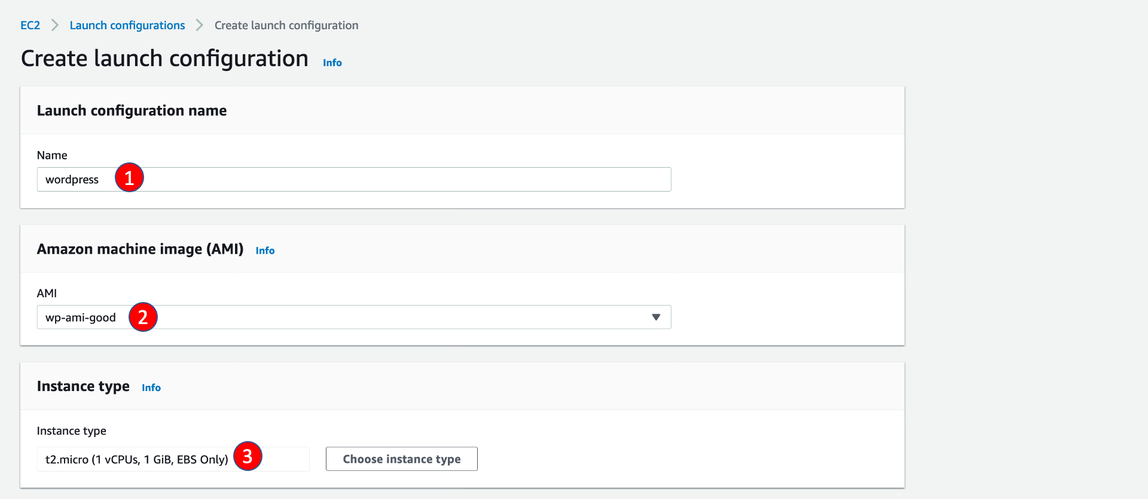
- For name, enter
wordpress
- For AMI, choose AMI created in last step
- For Instance type, search and select t2.micro
- In Additional configuration section, click Advanced details
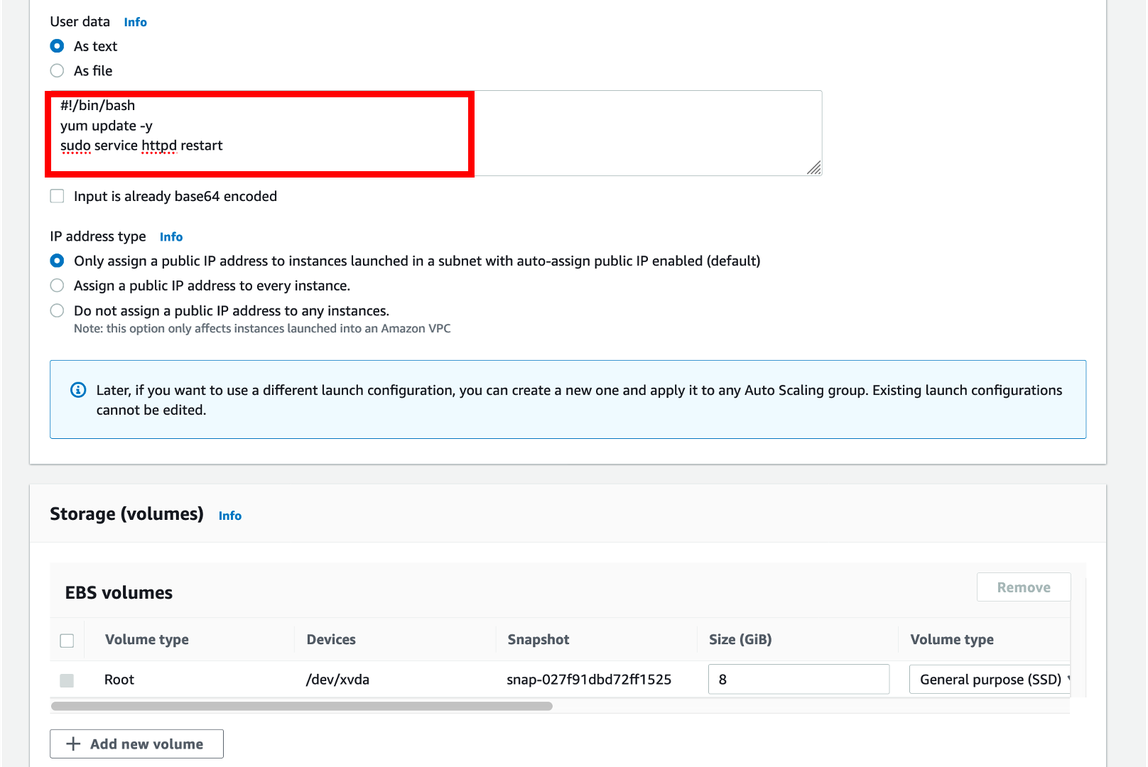
- For User data, select As text and enter the script below
#!/bin/bash
yum update -y
sudo service httpd restart
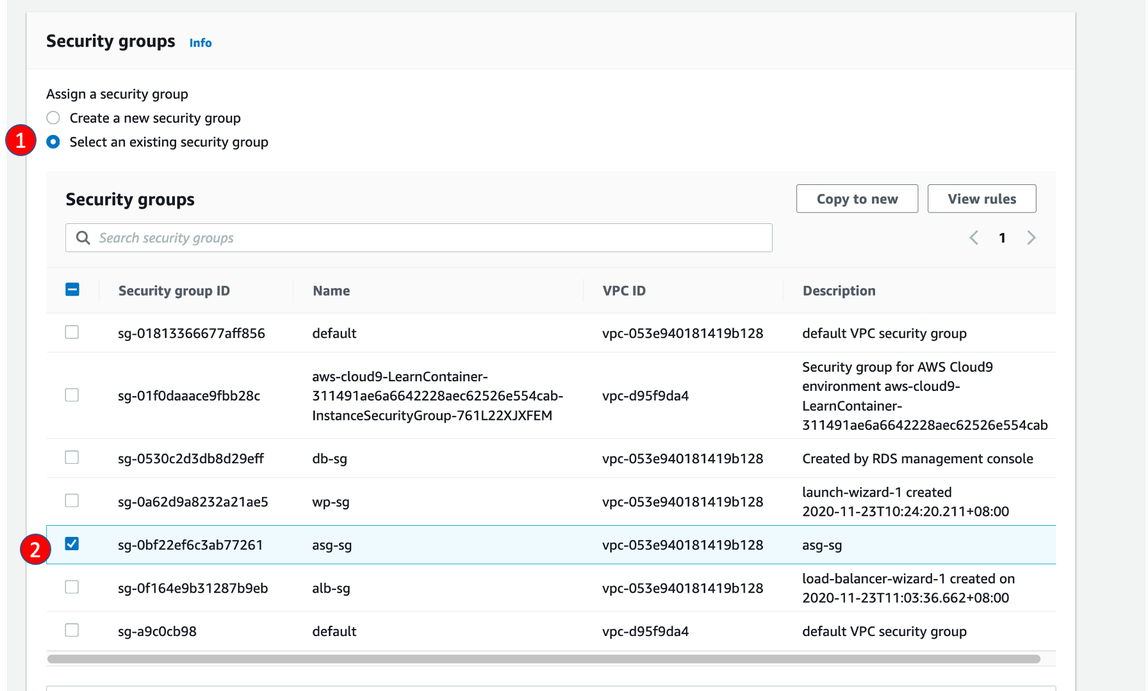
- For Security group,select Select an existing security group and select asg-sg just created
- For Key pair options, select Choose an existing key pair
- For Existing key pair, select the key created in Lab 1
- Finally, click Create launch configuration
- Visit EC2/Auto Scaling/Auto Scaling Groups
- Click Create an Auto Scaling Group
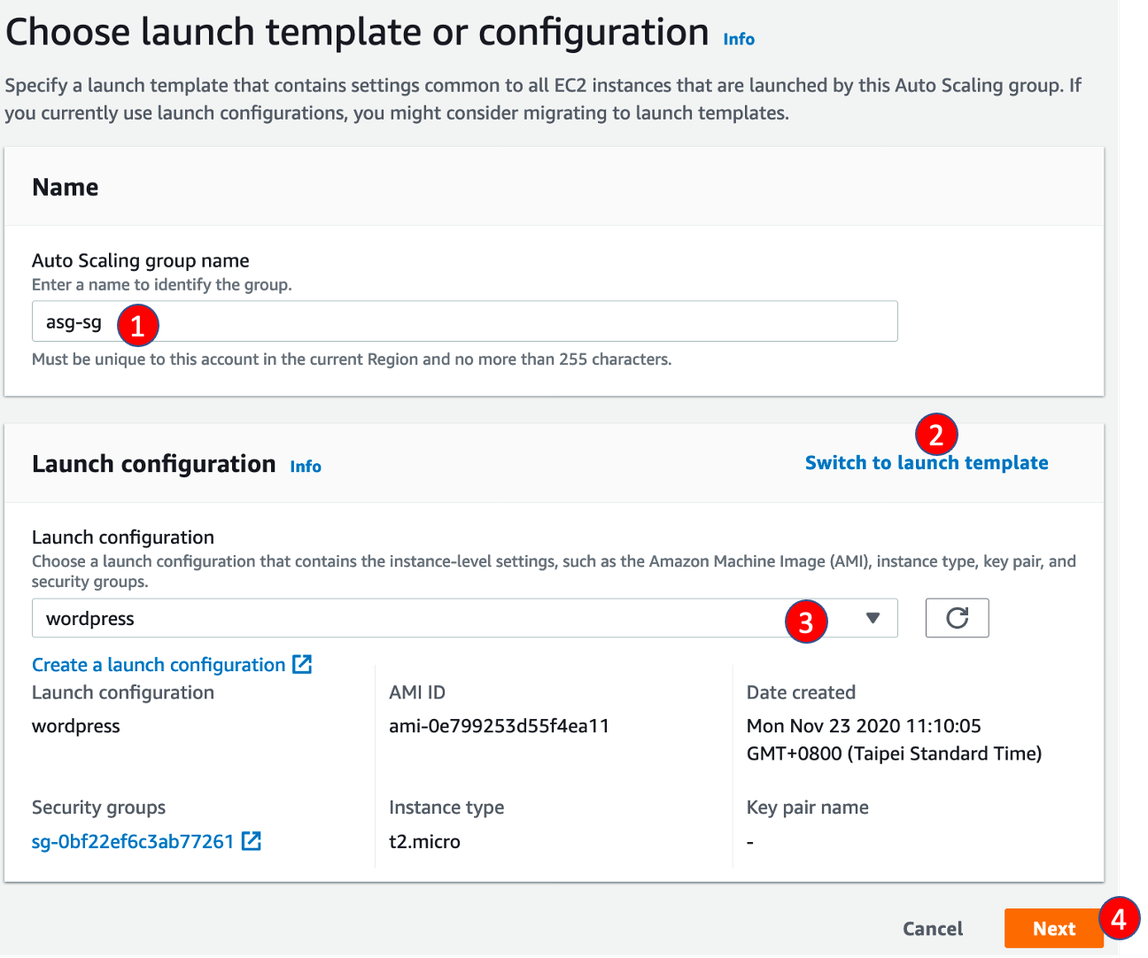
- For Auto Scaling group name, enter
wordpress-sg
- For Launch template section, click Switch to launch configuration and select the launch configuration created in last step and click Next
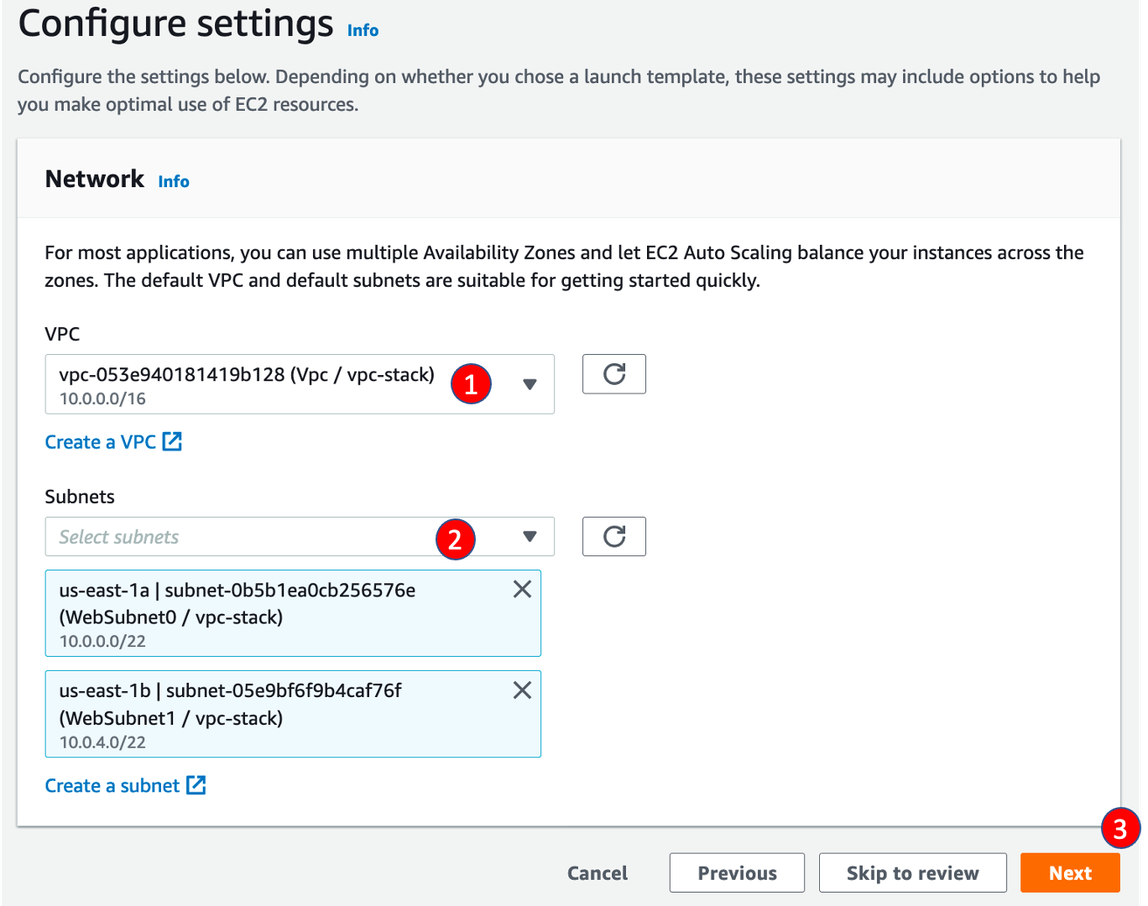
- In Configure setting stage,
- For Vpc, select Vpc / vpc-stack, created by CloudFormation
- For Subnets, select WebSubnet0 / vpc-stack and WebSubnet1 / vpc-stack, then click Next
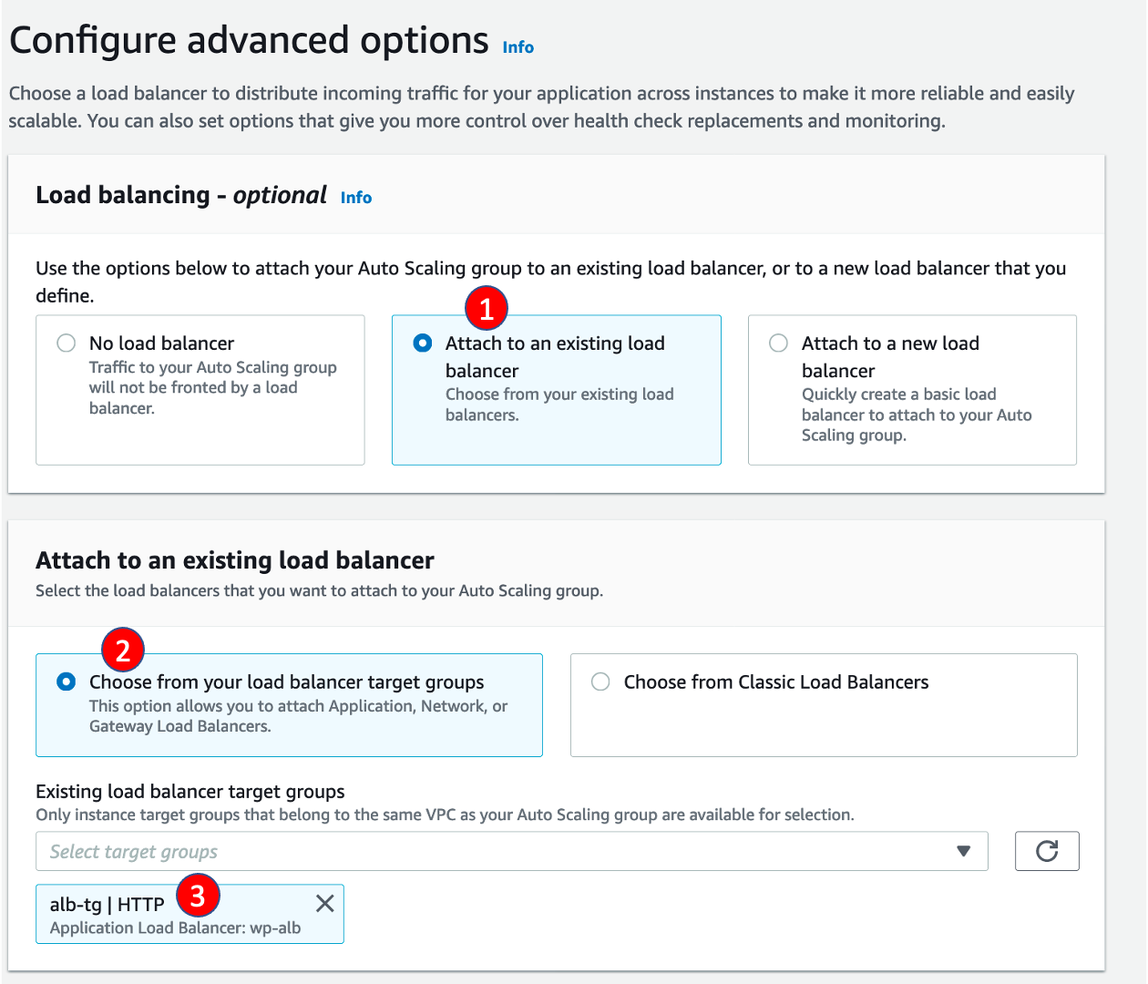
- In Configure advanced options stage
- For Load balancing, select Attach to an existing load balancer
- For Existing load balancer target groups, select alb-tg
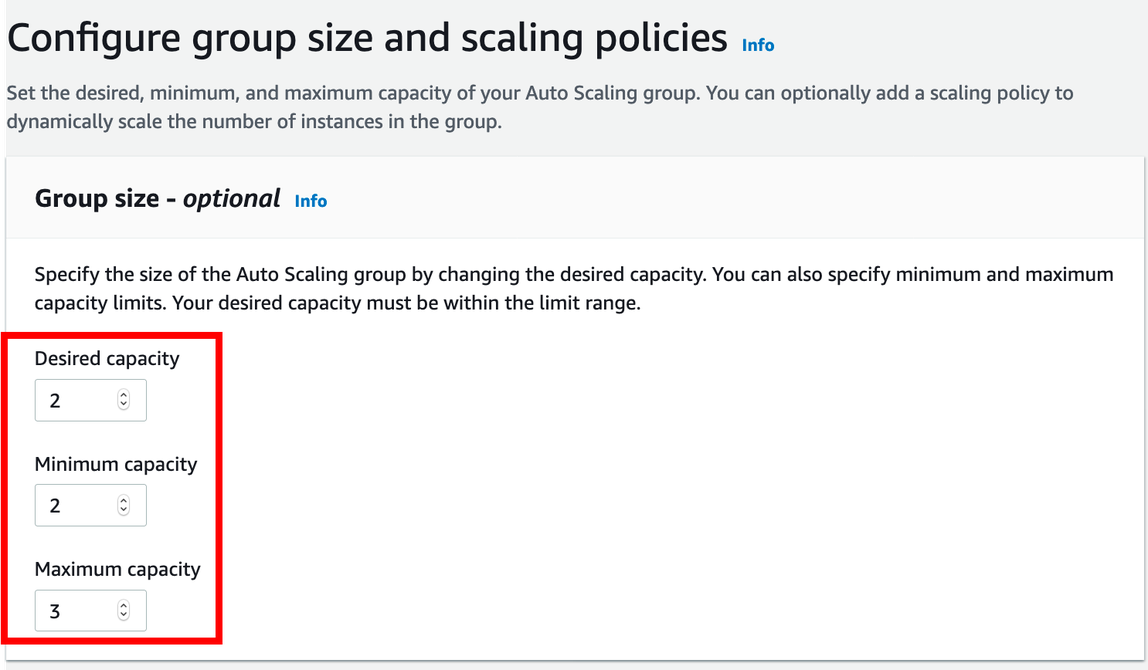
- In Configure group size and scaling policies stage
- In Group size - optional Section
- For Desired capacity, Minimum capacity, Maximum capacity, enter 2,2,3 then click Next
- In Add notifications and Add tags sections, click Next
- In Review sections, click Create Auto Scaling group