Step 4. Modify the WordPress Settings
- Connect to the EC2 Inctance that was launched in Lab 1
- Disable https for this intance - comment
$_SERVER['HTTPS'] = 'on';
- start the web service
sudo service httpd start
sudo systemctl restart php-fpm
- Copy the EC2 instance Public IPv4 DNS url add to it
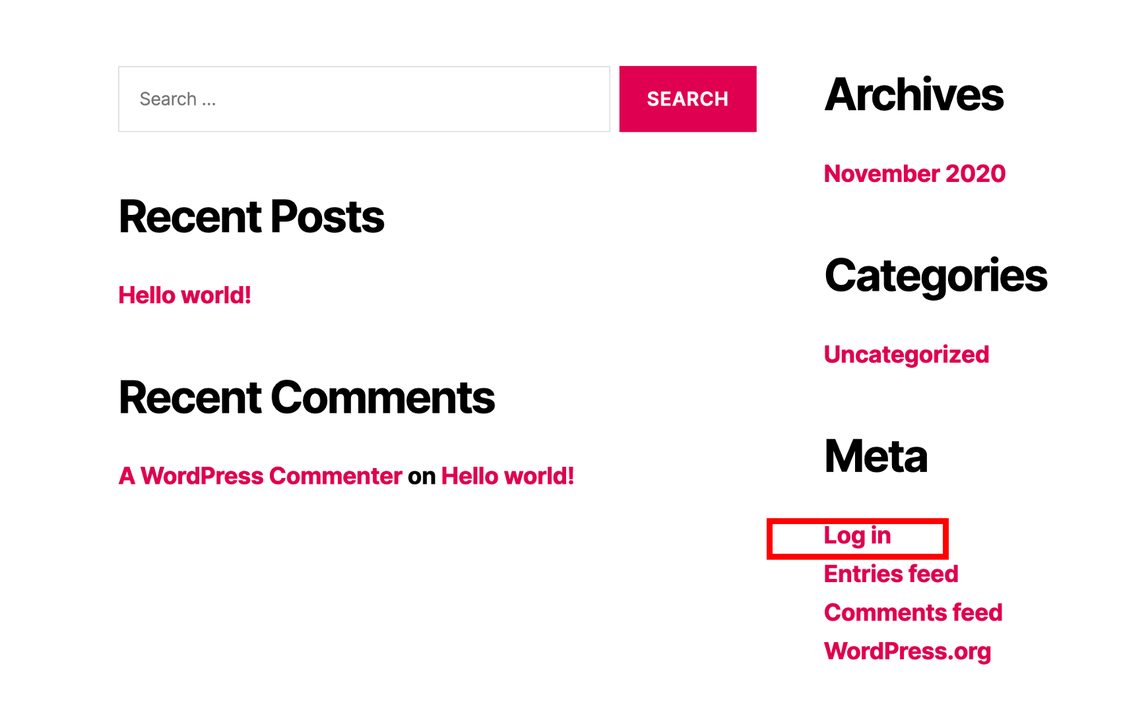
/wp-admin, paste it on browser to enter the admin page
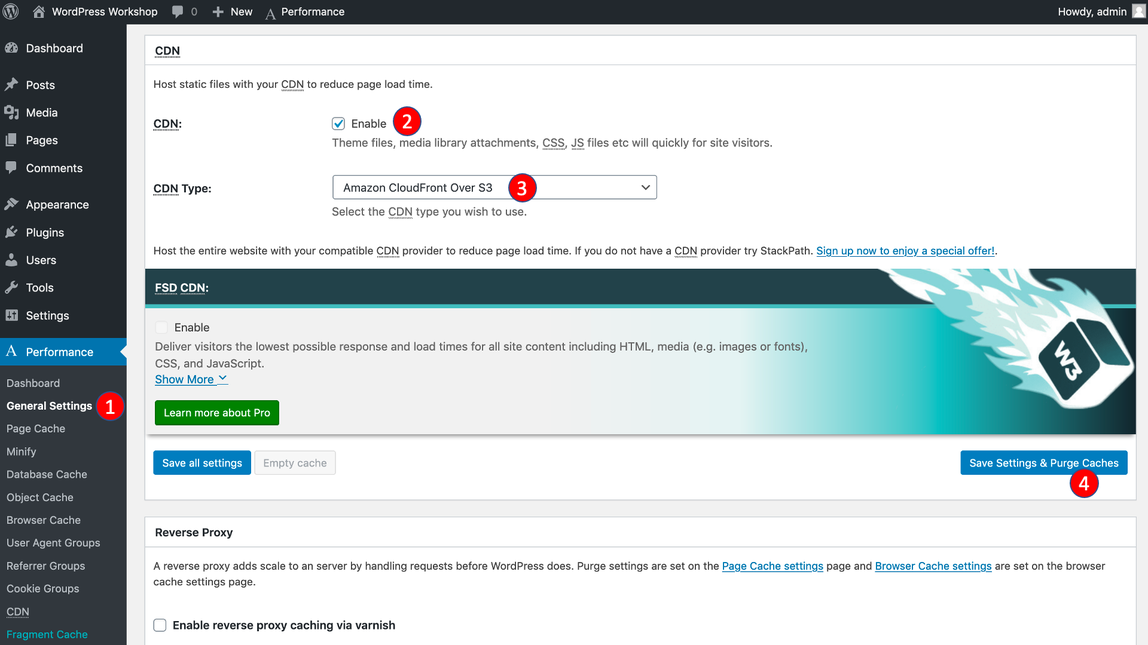
- In admin page, click Performance/General Settings on the left menu
- Scroll down to find the CDN section
- For CDN type, select Amazon CloudFront Over S3
- Click Save Settings and Purge Caches
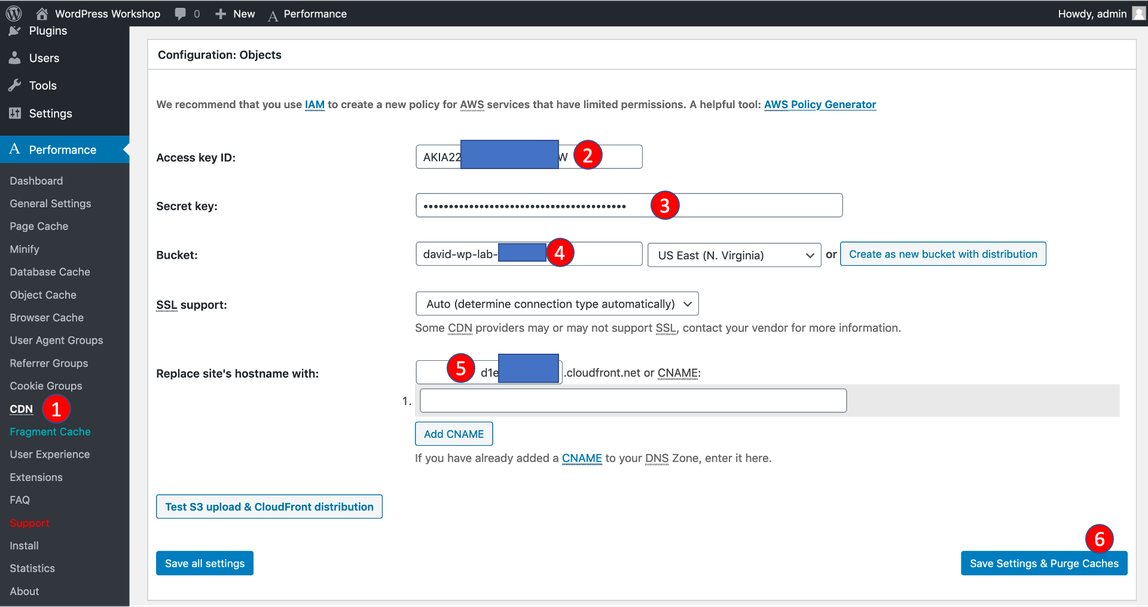
- Click Performance/CDN on the left menu, scroll down and find Configuration:Objects section
- For Access key ID and Secret key, paste your IAM user credentials
- For Bucket, enter your S3 bucket name created in Lab 1
- For Replace site’s hostname with, enter the CloudFront Domain created in last step and click Save Settings and Purge Caches
- Click Setting/General on the left menu
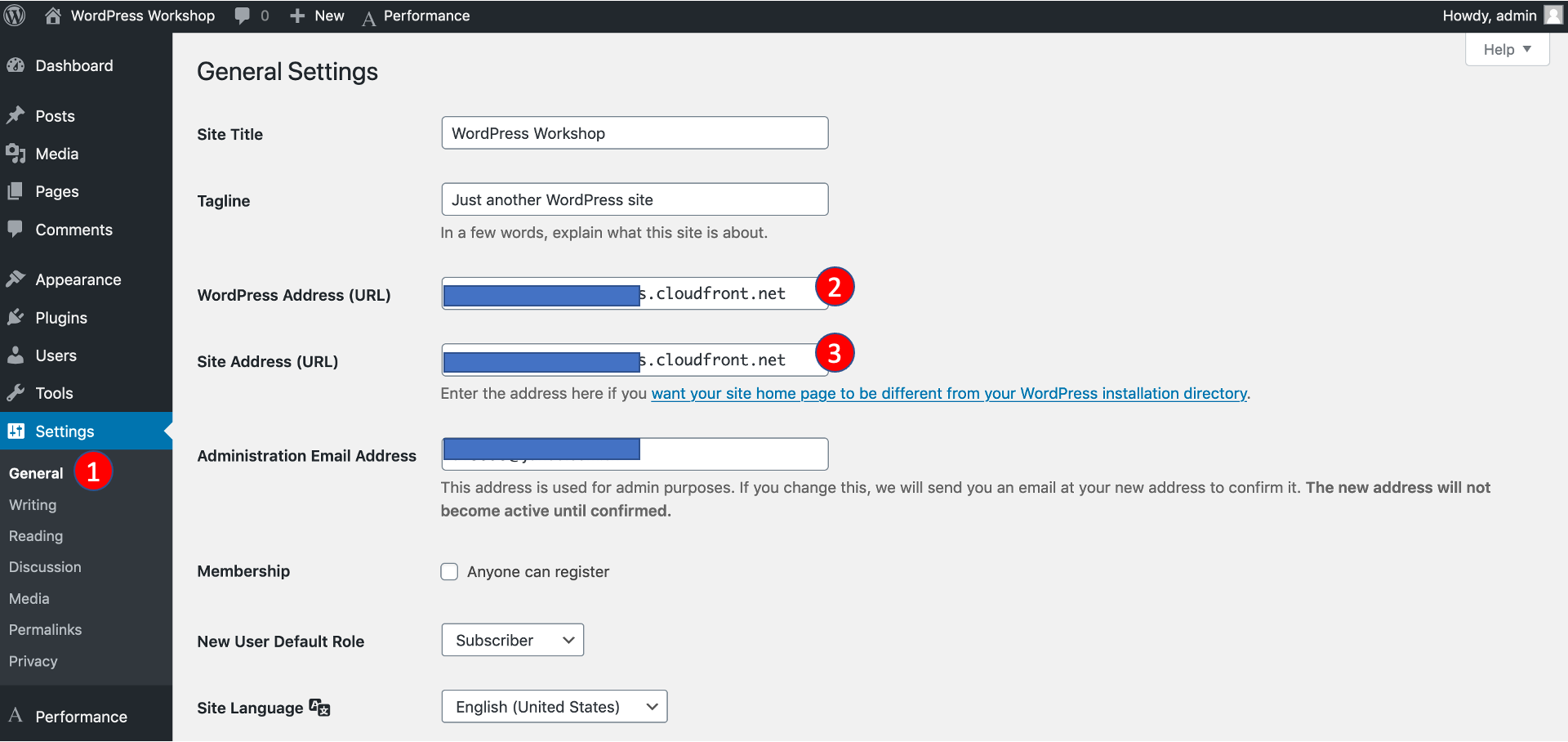
- For WordPress Address (URL) and Site Address (URL), enter your CloudFront domain and click Save Changes